


Trojan:Win32/Wacatac is a Microsoft Defender detection for a broad family of Windows Trojans. If Defender shows this name, treat the computer as potentially compromised until scans are clean. Wacatac detections are often connected to cracked software, fake installers, suspicious archives, phishing attachments, or files that try to hide their real behavior with packing and encryption.
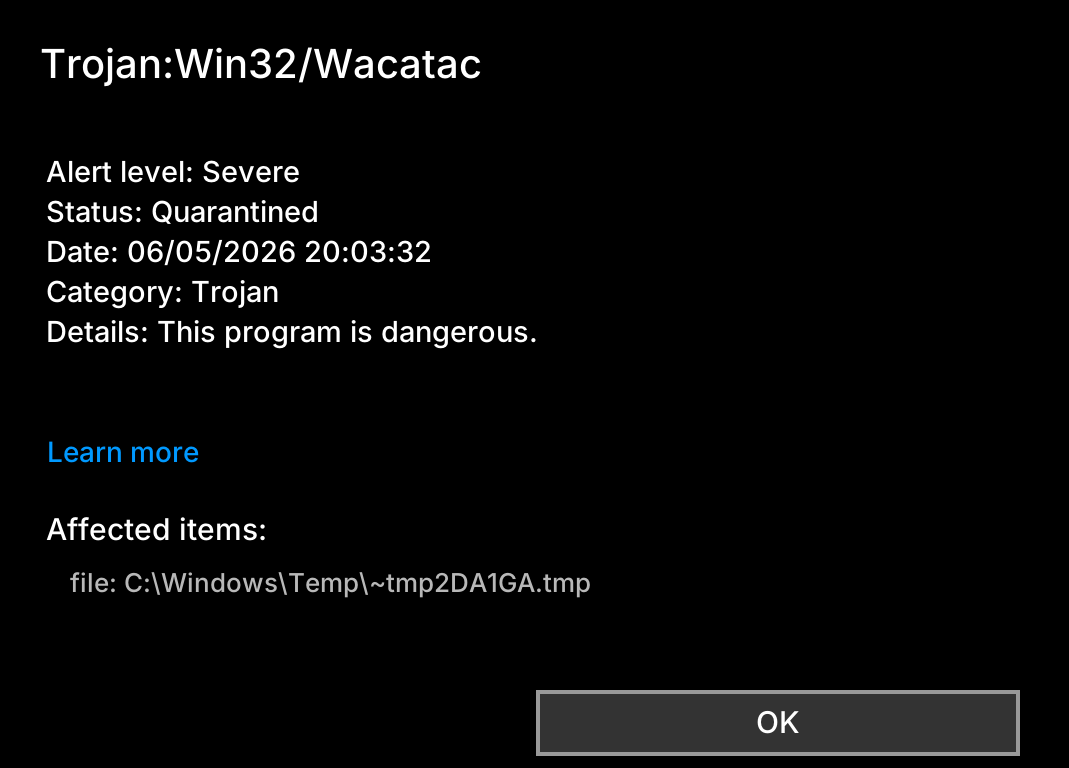
What Trojan:Win32/Wacatac means
Microsoft describes Wacatac as an ongoing and adaptable Windows threat that can steal information, download other malware, or create a backdoor for more serious attacks. It is not one single app with one fixed file name. The detection can apply to related droppers, loaders, and packed executables that give an attacker a foothold on the system.
The most common sources are risky downloads: cracks, keygens, pirated games, fake updates, bundled installers, and email attachments disguised as business documents. Some Wacatac variants try to disable security tools, change registry settings, copy themselves into user folders, or return after reboot through startup entries.
Important: If you ran a suspicious installer before the alert appeared, assume passwords may be at risk. Do not sign in to banking, email, crypto wallets, hosting panels, or work accounts from that PC until cleanup is complete.
Quick signs Wacatac may still be active
- Defender removes the threat, but the same detection returns after restart.
- Windows Security, real-time protection, or Tamper Protection has been disabled.
- Task Manager shows unknown processes with no verified publisher.
- Files with random names appear under AppData, Temp, Downloads, or Startup.
- The browser opens unwanted pages, new extensions appear, or search settings change.
- The PC sends network traffic while nothing obvious is open.
Safe removal order
Do not start by hunting random registry keys. First reduce the chance that the malware can keep talking to its server, then let Defender scan before Windows loads the normal desktop environment.
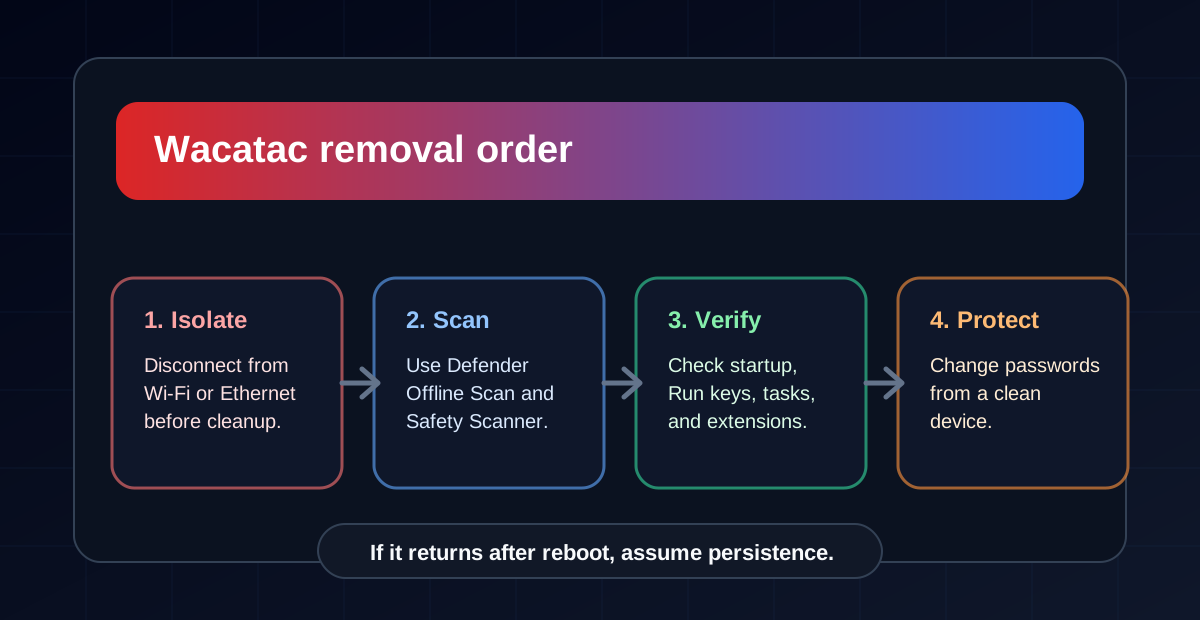
- Disconnect the computer from Wi-Fi and Ethernet.
- Open Windows Security and update protection definitions.
- Choose Virus & threat protection > Scan options > Microsoft Defender Offline scan.
- After Windows restarts, run a normal Full scan.
- Remove or quarantine every detected item.
- Delete the original archive, installer, crack, or email attachment that triggered the infection.
- Restart again and check whether the Wacatac alert returns.
You can force a Defender update from PowerShell as administrator:
Update-MpSignature
Start-MpWDOScan
Check the file path in Protection History
Open Protection history, expand the Wacatac event, and note the affected item. The path usually tells you how the threat arrived and how careful you need to be after removal.
| Detected location | What it often means | What to do |
|---|---|---|
| Downloads or a compressed archive | A risky file was downloaded but may not have fully executed. | Delete the archive and source installer, then run a full scan. |
| AppData, Temp, Startup, or ProgramData | The file may already have run and dropped components. | Use Offline Scan, then inspect persistence locations. |
| Crack, patcher, keygen, trainer, or fake activator | High-risk source commonly used to deliver Trojans. | Remove it, scan, and change passwords from a clean device. |
| Browser cache or email attachment | The infection may have come from a phishing or drive-by download attempt. | Clear the browser source, remove the email, update the browser, and scan. |
Second-opinion scan with Trojan Killer
After Defender has removed the Wacatac detection, a second-opinion scan can help catch leftovers such as startup entries, suspicious scripts, browser add-ons, or dropped files in user folders. One option is Trojan Killer. Update its database first, run a full scan, and review every detection before quarantining it.
If Wacatac keeps coming back
A repeated detection after reboot usually means one of three things: the original source file is still present, another component is recreating the detected file, or a scheduled/startup entry is launching it again. Check persistence only after you have updated Defender and run Offline Scan.
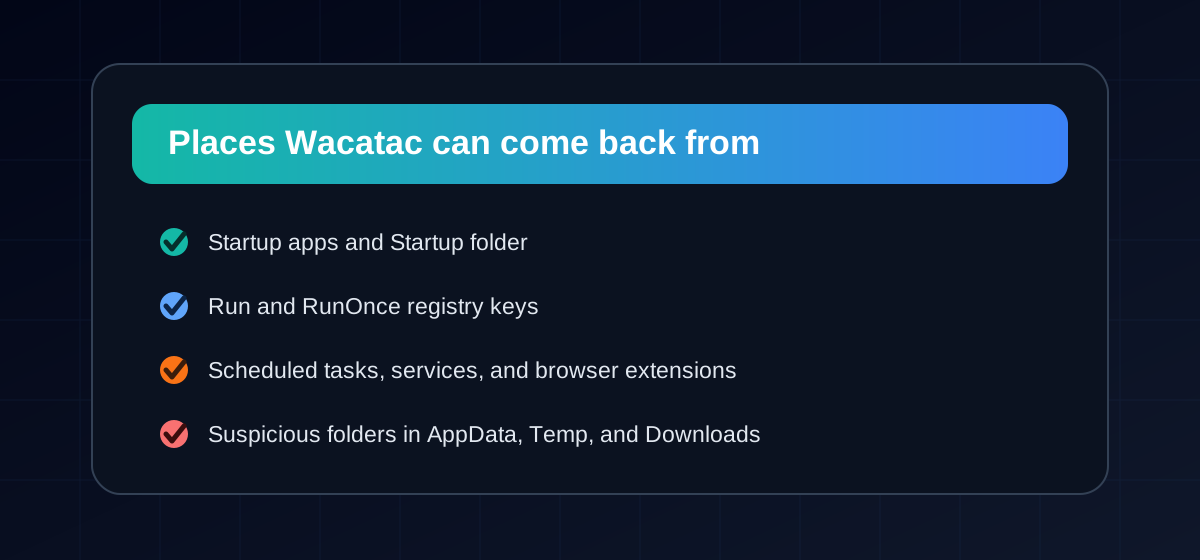
- Open Task Manager > Startup apps and disable unknown entries.
- Check Task Scheduler for newly created or strange tasks.
- Review Settings > Apps > Installed apps for unknown programs.
- Check browser extensions in Edge, Chrome, and Firefox.
- Inspect AppData, Temp, Downloads, and Startup folders for recently created suspicious files.
- Make sure Windows Security, real-time protection, firewall, and Tamper Protection are enabled.
Should you change passwords?
Yes, if the suspicious file ran. Wacatac-style Trojans may steal browser data, session cookies, saved passwords, wallet information, or documents. Change passwords from a clean phone or another trusted computer, not from the infected PC. Start with email, banking, Microsoft/Google/Apple accounts, password managers, work accounts, hosting panels, and crypto wallets.
- Enable two-factor authentication where possible.
- Sign out other sessions from important accounts.
- Review recent login history for unusual locations or devices.
- Replace saved browser passwords if the browser profile was exposed.
- Watch banking and payment accounts for unauthorized activity.
When a clean reinstall is safer
If Wacatac returns after Defender Offline Scan, if security tools keep turning off, if ransomware appeared, or if the PC was used for business or financial work, a clean Windows installation may be safer than trying to repair every hidden change. Back up documents, photos, and essential files only. Do not back up cracks, unknown installers, scripts, or archives that may have caused the infection.
How to avoid Wacatac in the future
- Download software only from official vendor websites or the Microsoft Store.
- Avoid cracked software, activators, keygens, trainers, and pirated media.
- Keep Windows, browsers, Office, and PDF readers updated.
- Use a standard Windows account for daily work instead of an administrator account.
- Keep Defender real-time protection, firewall, and Tamper Protection enabled.
- Maintain offline backups that are disconnected when not in use.
Related removal guides
- Trojan:HTML/Phish.AO!atmn removal guide
- HackTool:Win32/GameHack removal guide
- “Potential Threat Warning” pop-up removal guide
- Trojan:Win32/Cerdigent removal guide
- Trojan:Win32/Cerdigent.A!dha guide
- Trojan:Win32/JScealTaskExec removal guide
