

Trojan:Win32/Cerdigent is a Microsoft Defender detection name for a Trojan threat. If Windows Security shows this alert, do not ignore it, but also do not start deleting random system files. The safe approach is to check the affected item path, update Defender, scan the system, and then decide whether the alert points to a real suspicious file or a known false-positive pattern.
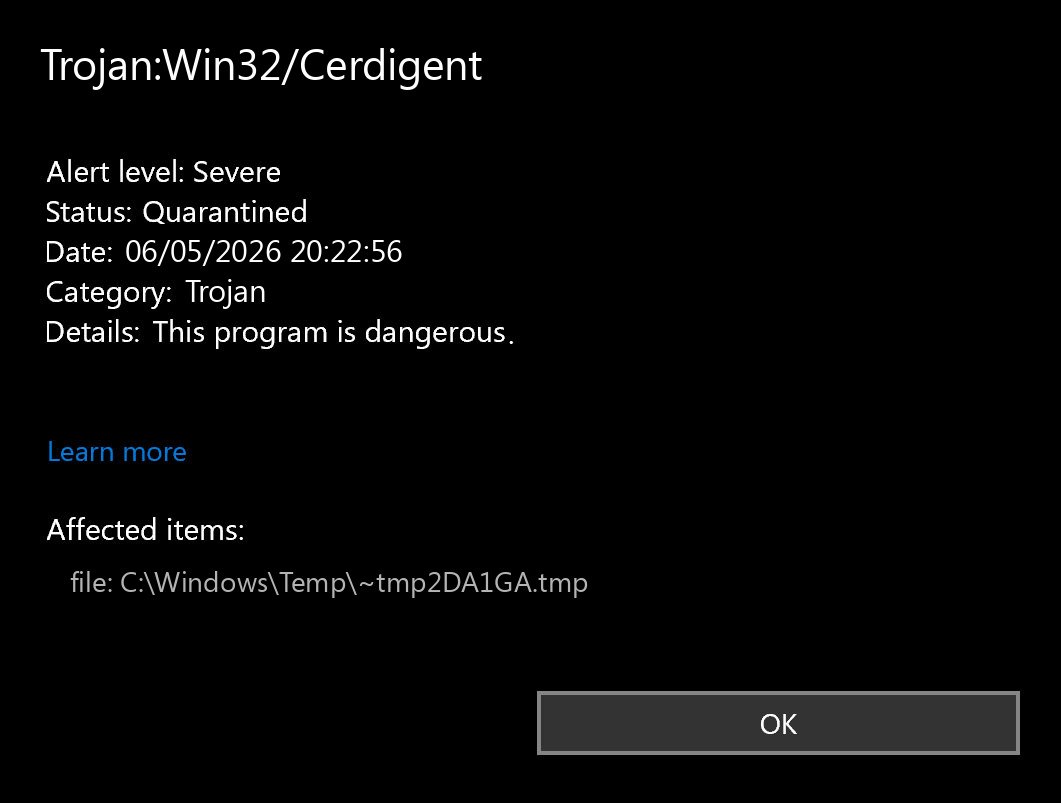
What Trojan:Win32/Cerdigent means
A Trojan is malware that tries to look like something normal: an installer, archive, fake update, cracked app, document attachment, or bundled utility. The Cerdigent name is used by Microsoft Defender to classify a threat that can perform actions chosen by an attacker, such as dropping files, changing system settings, or helping another payload run on the computer.
There is also an important recent context: Defender users and administrators reported Trojan:Win32/Cerdigent.A!dha alerts that were later tied to a false positive involving legitimate DigiCert root certificates. That does not mean every Cerdigent alert is harmless. It means the affected path matters.
Do not delete certificates, drivers, or Windows system files manually. First update Microsoft Defender and check the exact affected item in Protection History. A certificate-store alert and a suspicious executable in Downloads need different handling.
Check Protection History first
Open Windows Security, go to Virus & threat protection, then open Protection history. Expand the Cerdigent alert and note the affected item, detection status, and action taken. This tells you whether Defender quarantined a downloaded file, blocked a running component, or reported a certificate-store entry.
| What Defender reports | What it may mean | Best next step |
|---|---|---|
| Downloads, Temp, AppData, archive, EXE, script, or installer | A suspicious file may have been downloaded or executed. | Quarantine it, delete the original source, and run a full scan. |
| DigiCert, AuthRoot, or certificate store | Possible false-positive pattern related to recent Cerdigent.A!dha reports. | Update Defender definitions, reboot, then scan again before changing certificates. |
| The same alert returns after restart | A startup item or scheduled task may be recreating the file. | Use Defender Offline Scan, then inspect persistence locations. |
| Crack, patcher, keygen, fake activator, or bundled installer | High-risk source commonly used to deliver Trojans. | Remove it and treat saved passwords as potentially exposed. |
Safe removal steps
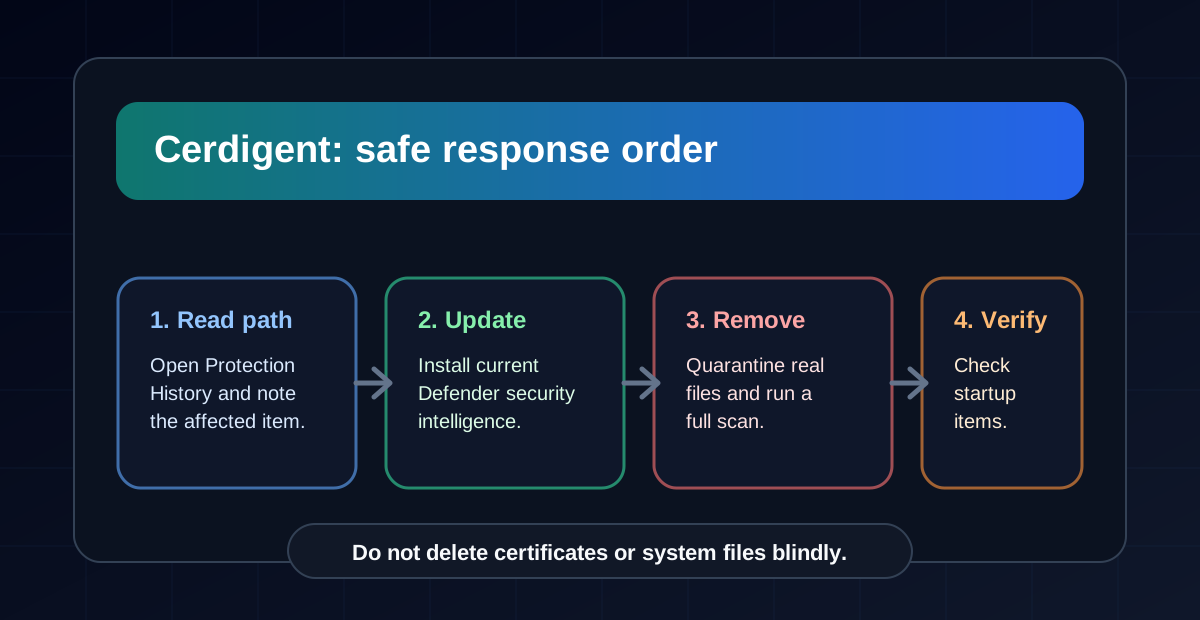
- Disconnect the PC from the internet if the alert points to a file that may have run.
- Open Windows Security > Virus & threat protection > Protection updates and click Check for updates.
- Run a Full scan.
- If the alert returns, run Microsoft Defender Offline scan.
- Remove or quarantine detected files through Windows Security.
- Delete the original download, archive, installer, crack, or email attachment that delivered the file.
- Restart and check Protection History again.
You can also update Defender from PowerShell as administrator:
Update-MpSignature
Start-MpWDOScan
Second-opinion scan with Trojan Killer
After Defender has updated and removed the detected item, a second-opinion scan can help confirm that no dropped file, startup entry, browser extension, or leftover suspicious component remains. One option is Trojan Killer. Update its database first, run a full scan, and review detections carefully before quarantining them.
If the detection mentions DigiCert or AuthRoot
If Protection History references DigiCert, AuthRoot, or the Windows certificate store, do not repeatedly remove certificate entries. In May 2026, Microsoft Defender users reported Cerdigent.A!dha detections against legitimate DigiCert root certificates, and Microsoft guidance in community responses pointed users to updated definitions. Update Defender first, reboot, and confirm whether the detection disappears.
- If the alert disappears after updates, no manual certificate cleanup is usually needed.
- If it remains, check whether the affected item is still a certificate entry or a separate file.
- On a work device, check with your administrator before restoring, deleting, or excluding certificate objects.
If the detection points to a real file
If the affected item is an executable, script, archive, crack, fake update, or file in Temp/AppData, handle it as a real infection. Remove it, scan again, and check whether the same file or folder returns after reboot. Repeated detections often mean another startup item is recreating the threat.
- Check Task Manager > Startup apps for unknown entries.
- Open Task Scheduler and review recently created tasks.
- Review browser extensions in Edge, Chrome, and Firefox.
- Uninstall unknown apps, fake optimizers, bundled downloaders, or suspicious remote-access tools.
- Check AppData, Temp, Downloads, and Startup folders for recently modified suspicious files.
Change important passwords from a clean device if you ran a suspicious installer before the alert. Start with email, banking, Microsoft/Google accounts, password managers, hosting panels, and crypto wallets.
When to reinstall Windows
A clean reinstall is worth considering if Cerdigent returns after Defender Offline Scan, if security tools keep turning off, if unknown admin accounts appear, or if the computer was used for financial or business work. Back up documents and photos only. Do not back up cracks, unknown installers, scripts, or archives that may contain the original threat.
Related removal guides
- Trojan:HTML/Phish.AO!atmn removal guide
- HackTool:Win32/GameHack removal guide
- “Potential Threat Warning” pop-up removal guide
- Trojan:Win32/Cerdigent.A!dha: false positive or real threat?
- Trojan:Win32/Wacatac removal guide
- Trojan:Win32/JScealTaskExec removal guide
