

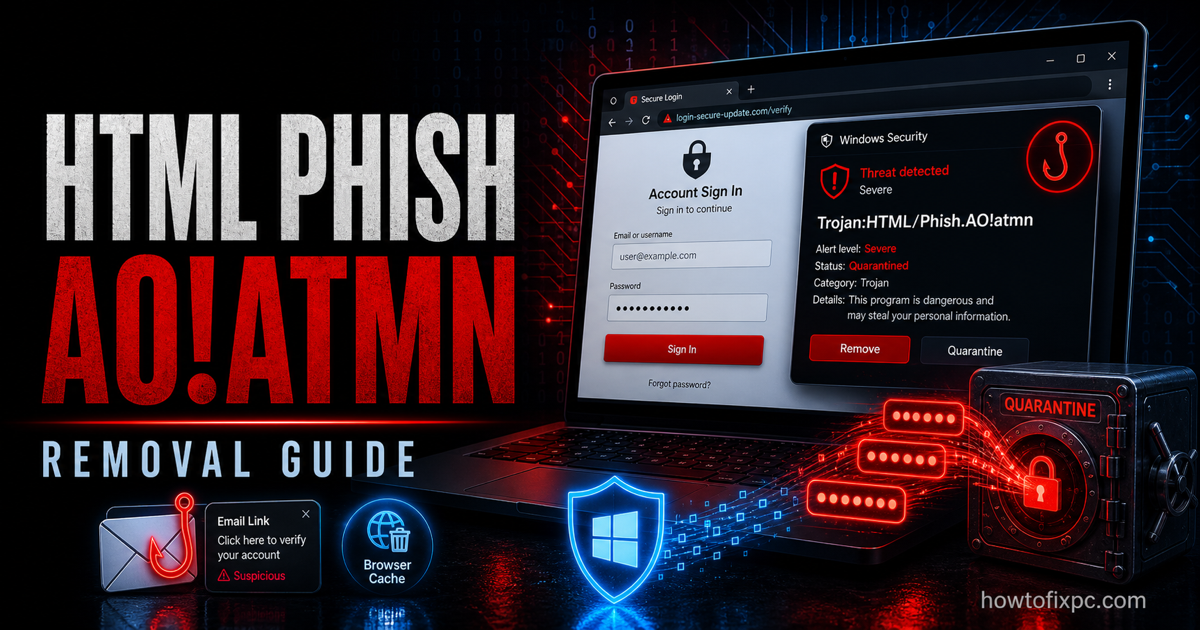
Trojan:HTML/Phish.AO!atmn is a Microsoft Defender detection for a suspicious HTML phishing object. It is not the same kind of alert as a normal Win32 executable. Defender may find it inside a browser cache, email attachment, downloaded HTML file, web archive, temporary internet file, or a page that tried to imitate a login screen. The main risk is credential theft: passwords, session cookies, payment details, or recovery codes entered into a fake form.
If you typed a password into the page, treat the account as exposed. Do not only delete the detected file. Change the password from a clean device, revoke unknown sessions, and enable two-factor authentication.
What Trojan:HTML/Phish.AO!atmn means
The Trojan:HTML/Phish part tells you Defender detected phishing content in HTML. The AO!atmn suffix is a variant/signature name. In plain English, Defender saw a web page, cached page, attachment, or script that looked like it was designed to trick a user into signing in, verifying an account, downloading a fake update, or clicking through a security warning.
Many of these detections are removed simply by clearing the browser cache or deleting the malicious attachment. But if the page was opened, if credentials were entered, or if the alert keeps returning, you should also check browser extensions, notification permissions, startup items, and saved sessions.
Check where Defender found it
Open Windows Security, go to Virus & threat protection, then open Protection history. Expand the Trojan:HTML/Phish.AO!atmn detection and read the affected item path. That path decides the cleanup.
| Detected path | What it usually means | Best next step |
|---|---|---|
| Browser cache, INetCache, WebCache, Chrome/Edge/Firefox cache | A phishing page or script was cached after visiting a site. | Clear browser cache, close suspicious tabs, then scan again. |
| Downloads, Desktop, email attachment, .html, .htm, .mhtml, .eml, or archive | A malicious phishing file was downloaded or received. | Quarantine it, delete the original email/download, and do not open it again. |
| Browser extension folder or profile directory | An extension or profile component may be injecting phishing redirects. | Remove unknown extensions and reset notification/site permissions. |
| The same detection returns after reboot | A redirector, extension, startup item, or unwanted app may be recreating it. | Run a full scan and inspect browser extensions, startup apps, and scheduled tasks. |
Safe removal steps
- Close the suspicious browser tab or email message. Do not click more buttons on the page.
- Open Windows Security > Virus & threat protection > Protection updates and install the latest definitions.
- In Protection history, choose Remove or Quarantine for Trojan:HTML/Phish.AO!atmn.
- Clear the cache for the browser named in the detection path.
- Delete the original suspicious email, attachment, downloaded HTML file, archive, or shortcut.
- Run a Full scan with Microsoft Defender.
- If the alert returns, run Microsoft Defender Offline scan.
You can update Defender and start an offline scan from an elevated PowerShell window:
Update-MpSignature
Start-MpWDOScan
Clean the browser side
Because this is an HTML phishing detection, the browser deserves special attention. A cached page is one thing; a malicious extension or notification permission is another. Check the browser that appears in the detection path first, then repeat the review in other browsers you use.
- Remove unknown extensions from Edge, Chrome, Firefox, and any Chromium-based browser.
- Open site settings and remove notification permissions for suspicious domains.
- Clear cache, cookies for suspicious domains, and temporary internet files.
- Check the homepage, search engine, and startup pages for unwanted URLs.
- Sign out of sensitive accounts and sign back in after changing passwords.
If you entered a password or card
The most important cleanup is account cleanup. If the phishing page looked like Microsoft, Google, Facebook, Steam, PayPal, a bank, webmail, hosting, or a crypto wallet login, change that password from a clean device. Then revoke active sessions, remove unknown recovery emails or phone numbers, and enable two-factor authentication.
Start with your email account. Whoever controls your email can reset passwords for many other services. After that, protect banking, payment apps, password managers, work accounts, cloud storage, and game accounts.
Second-opinion scan with Trojan Killer
After Defender removes the HTML phishing object, a second-opinion scan can help find browser hijackers, unwanted extensions, suspicious startup entries, or dropped files that may have caused the phishing page to appear. One option is Trojan Killer. Update its database first, run a full scan, and review detections carefully before quarantining them.
When the alert is only in cache
If the affected item is clearly inside a browser cache and Defender removes it, the system may be clean after cache cleanup and a full scan. Still, ask what page caused it. A phishing page often arrives through a malicious ad, fake CAPTCHA, email link, compromised site, or browser notification. If you see repeated fake alerts, redirects, or pop-ups, follow a browser-cleanup path similar to the “Potential Threat Warning” removal guide.
When to reinstall Windows
A clean reinstall is rarely needed for a one-time HTML phishing cache detection. Consider it if Defender keeps finding new threats, unknown extensions return, security settings are disabled, remote-access tools appear, or important accounts were accessed from the PC after entering credentials into a fake page. Back up documents and photos only. Do not back up suspicious HTML files, archives, scripts, or downloaded installers.
Related removal guides
- “Potential Threat Warning” pop-up removal guide
- HackTool:Win32/GameHack removal guide
- Trojan:Win32/Wacatac removal guide
- Trojan:Win32/JScealTaskExec removal guide
