

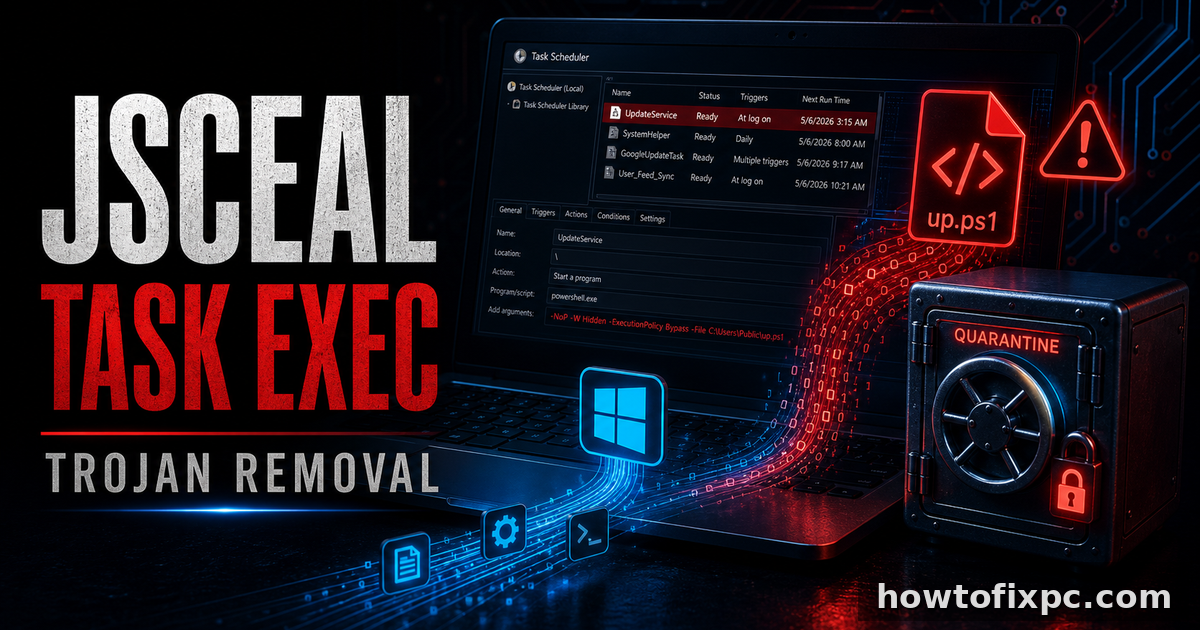
Trojan:Win32/JScealTaskExec is a Microsoft Defender detection for a Trojan. Treat it as a real security warning, especially if it appears again after you choose Remove or Quarantine. The goal is not to click random “PC cleaner” buttons. The goal is to update protection, remove the active threat, check where it may start from, and then protect your accounts.
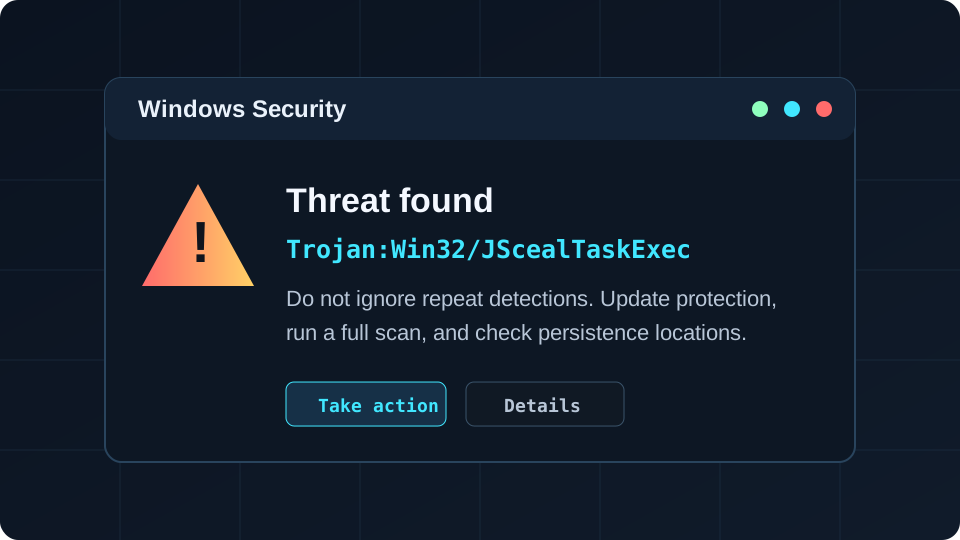
What Trojan:Win32/JScealTaskExec means
A Trojan is malware that usually tries to look like something normal: an installer, script, cracked app, document, browser download, fake update, or bundled utility. The JScealTaskExec name suggests Microsoft Defender saw behavior or files that match this threat family. Microsoft’s guidance for Trojan detections is straightforward: update security intelligence, run a scan, and remove detected items.
Important: If you used this computer for banking, email, crypto wallets, hosting panels, or saved browser passwords, assume credentials may be at risk until the system is clean. Change important passwords from a clean device after removal.
Quick signs that the infection may still be active
- Defender removes the threat, but it appears again after restart.
- A strange process returns in Task Manager after you end it.
- New startup entries or scheduled tasks appear without your approval.
- Browser search, extensions, or homepage settings change unexpectedly.
- Windows Security, browser protection, or updates are disabled.
- The PC connects to unknown sites or shows unusual network activity.
Safe removal order
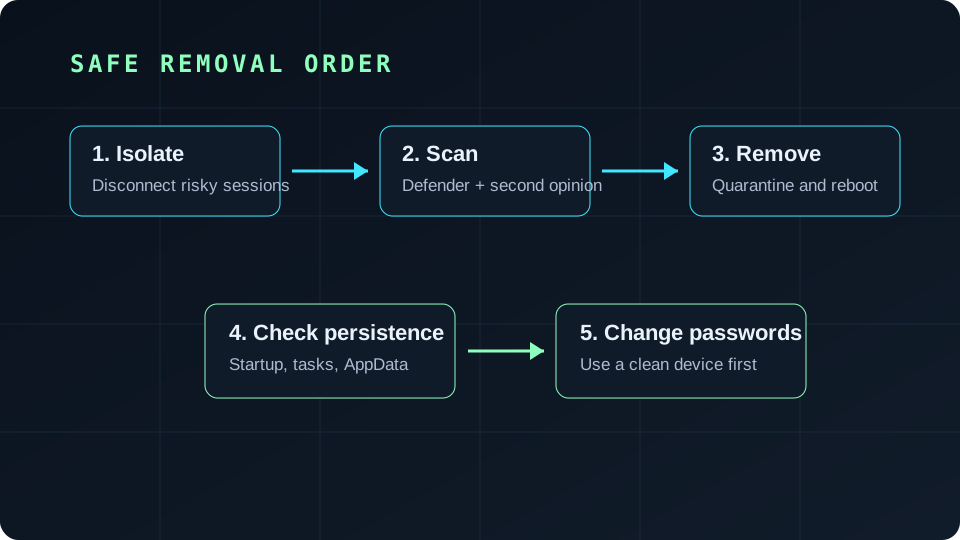
1. Disconnect risky sessions
If you suspect active malware, close sensitive accounts and disconnect external drives you do not need. You do not always have to unplug the internet immediately, because security tools may need updates, but avoid logging into banking, admin panels, crypto wallets, or email from the infected PC.
2. Update Microsoft Defender
- Open Windows Security.
- Go to Virus & threat protection.
- Open Protection updates and check for updates.
- Then run a Full scan.
If Defender blocks or removes the threat, restart the computer and scan again. A second detection after reboot usually means there is a startup task, script, installer, archive, browser extension, or another component restoring it.
3. Run Microsoft Defender Offline if the threat returns
Some malware is easier to remove before Windows loads fully. In Windows Security > Virus & threat protection > Scan options, choose Microsoft Defender Offline scan. Save your work first; the PC will restart.
4. Check common persistence locations
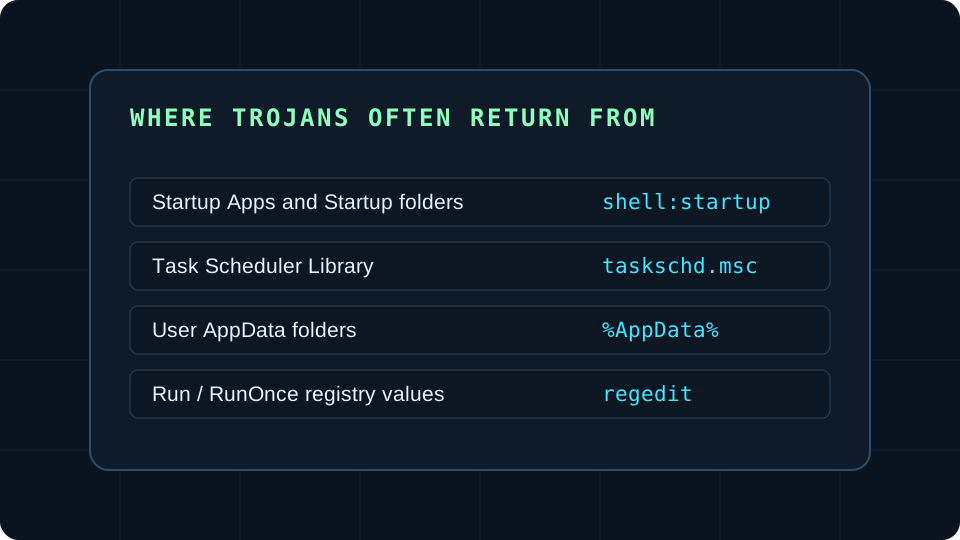
| Where to look | How to open it | What is suspicious |
|---|---|---|
| Startup Apps | Settings > Apps > Startup | Unknown tools, random names, recently added entries. |
| Startup folder | Press Win+R, type shell:startup | Scripts, shortcuts, or EXE files you do not recognize. |
| Task Scheduler | Press Win+R, type taskschd.msc | Tasks that run from AppData, Temp, Downloads, or strange folders. |
| Installed apps | Settings > Apps > Installed apps | New “cleaner,” “driver,” “update,” or browser-related apps. |
| Browser extensions | Chrome/Edge/Firefox extension page | Unknown extensions, search hijackers, coupon tools. |
Do not delete random system files. If you are not sure what an entry is, search its exact path and filename first, or quarantine it with a reputable scanner instead of deleting blindly.
Second-opinion scan with Trojan Killer
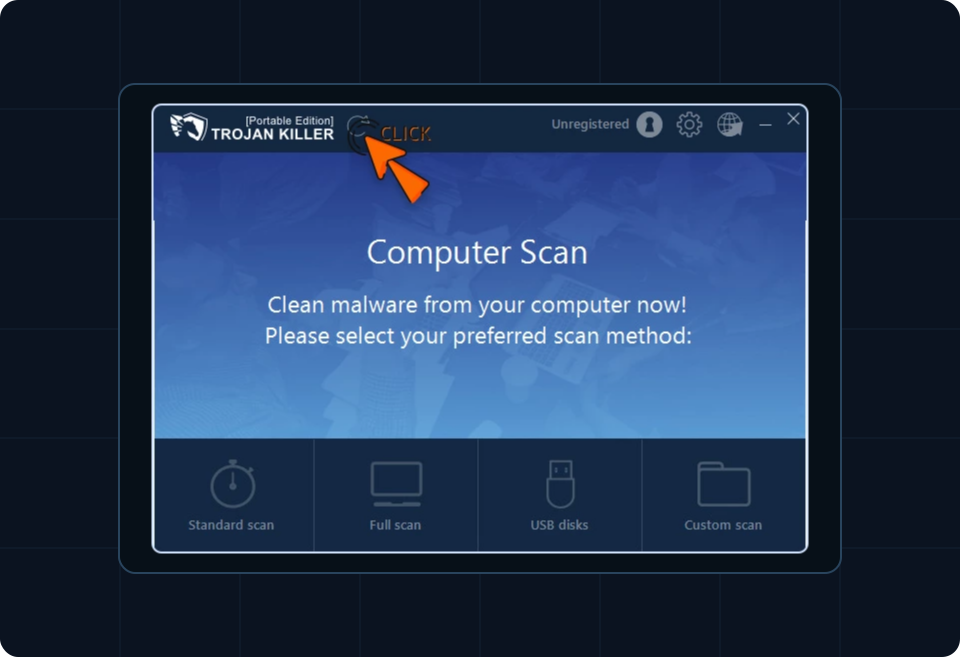
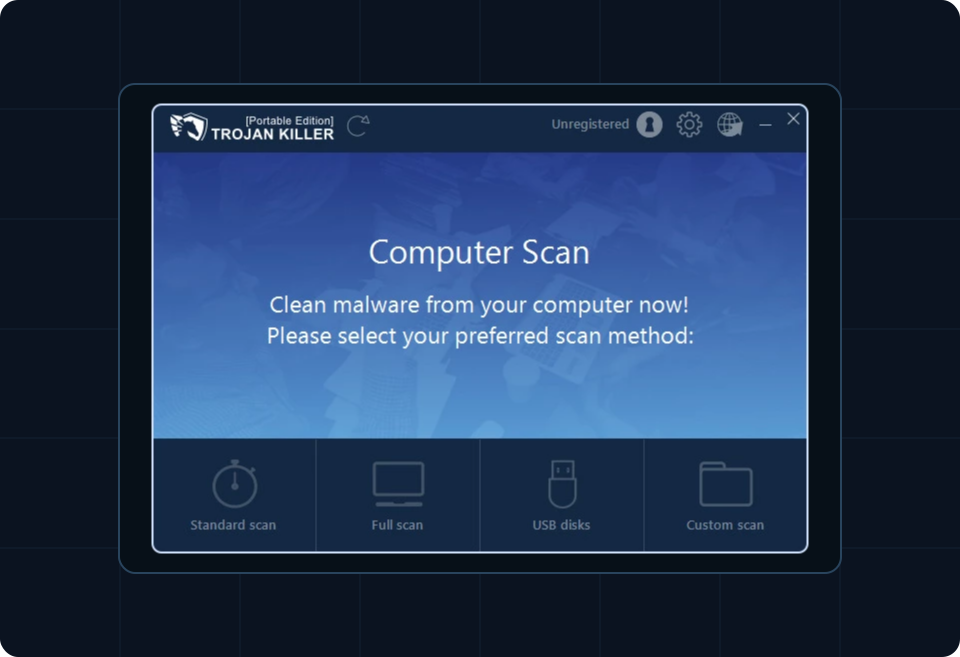
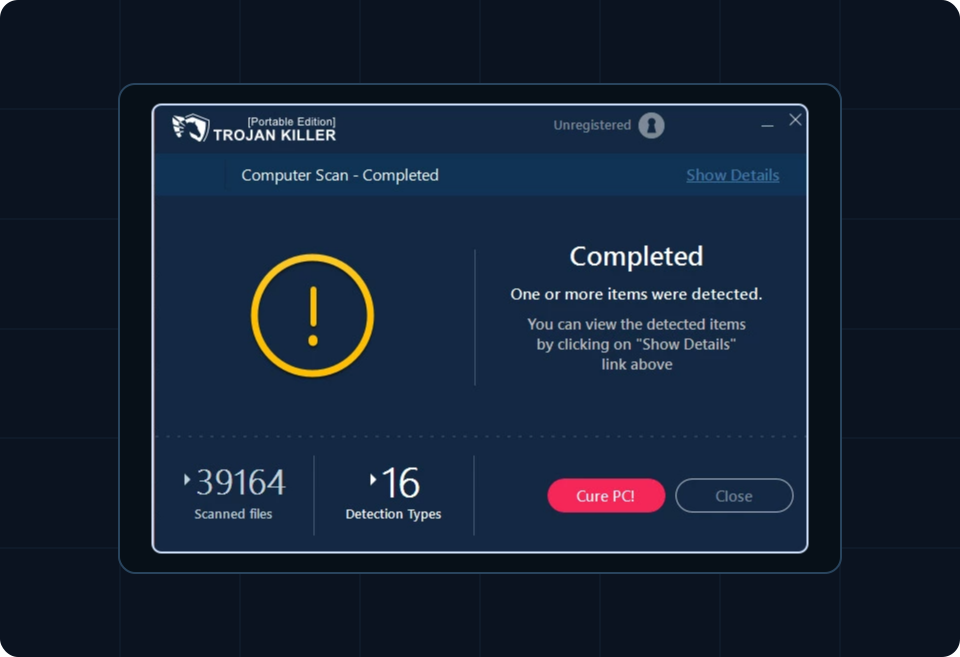
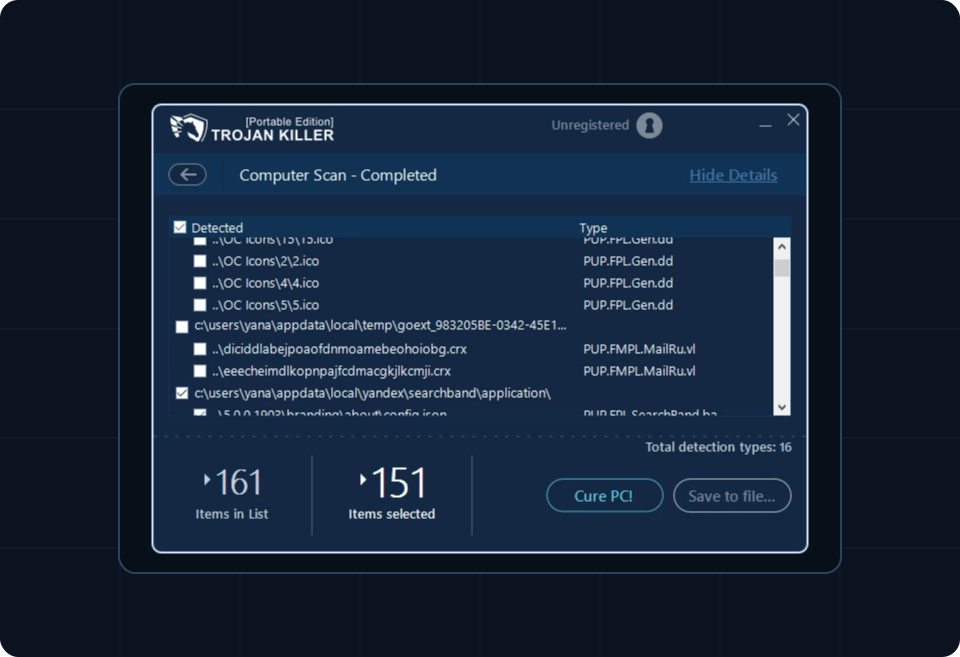
After Defender takes action, it can be useful to run a second-opinion scan. One option is Trojan Killer. Use the official source, update its database first, and run a full scan. This is not a replacement for Windows Security; it is an additional check to confirm that no active item or startup component remains.
After removal: protect accounts and browser data
- Change passwords for email, banking, Microsoft/Google accounts, hosting panels, and any saved browser accounts from a clean device.
- Enable two-factor authentication where possible.
- Check browser extensions and remove anything you do not recognize.
- Review recent account login history for suspicious sessions.
- Back up important files only after the system is clean. Do not copy suspicious installers, cracks, scripts, or archives.
When reinstalling Windows is the safer path
If the Trojan keeps returning, security tools are disabled, system files are damaged, or the PC was used for high-value accounts, a clean reinstall may be safer than trying to repair every change. Back up personal documents first, but avoid backing up executable files and installers from the infected system.
Quick checklist
- Update Microsoft Defender security intelligence.
- Run a full scan and quarantine/remove detections.
- Restart and scan again.
- If the detection returns, run Microsoft Defender Offline.
- Check Startup Apps, Task Scheduler, AppData, installed apps, and browser extensions.
- Run a second-opinion scan such as Trojan Killer if you want confirmation.
- Change important passwords from a clean device.
- Consider a clean Windows reinstall if the Trojan keeps returning.
Sources
- Microsoft Security Intelligence: Trojan:Win32/JScealTaskExec.A
- Microsoft Support: Microsoft Defender Offline
- Gridinsoft Helpdesk: Trojan Killer Portable
Frequently asked questions
Yes. Treat it as a real Trojan detection. Remove it with updated security tools, restart, scan again, and check whether it returns from startup locations or scheduled tasks.
Defender may be enough if it updates, removes the threat, and the detection does not return after reboot. If it comes back, run Defender Offline and check persistence locations such as Startup Apps, Task Scheduler, AppData, and browser extensions.
A second-opinion scan can be useful after Defender takes action. Update Trojan Killer first, run a full scan, review detections, quarantine suspicious items, restart, and scan again.
If you used the infected PC for email, banking, hosting, crypto, or saved browser passwords, change important passwords from a clean device after removal and enable two-factor authentication.
