

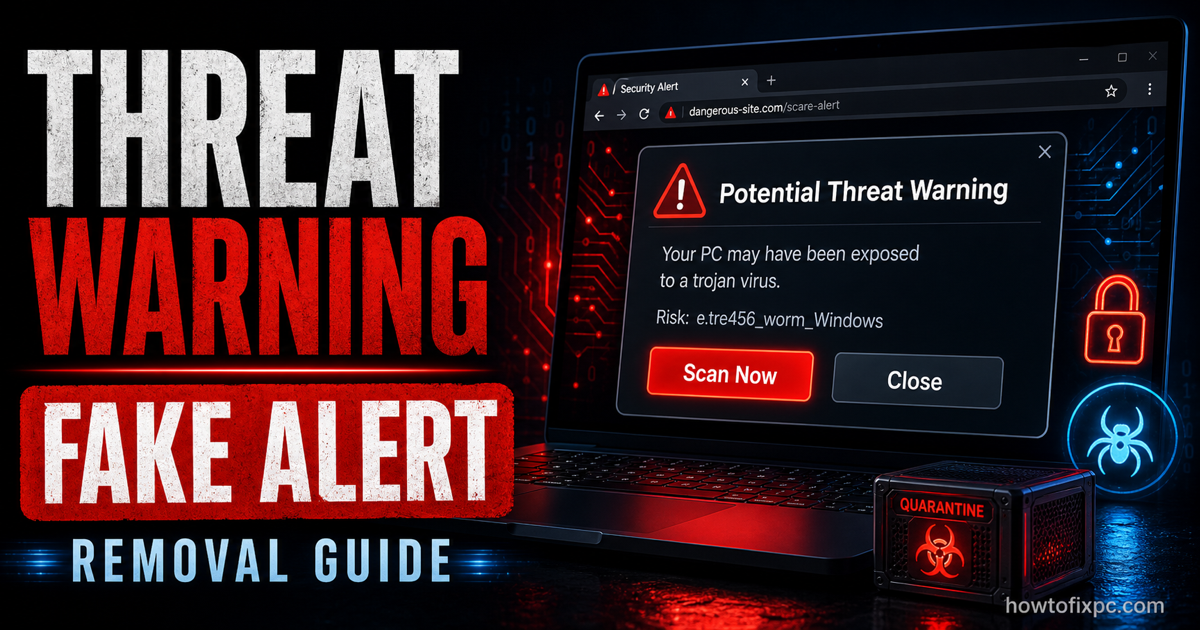
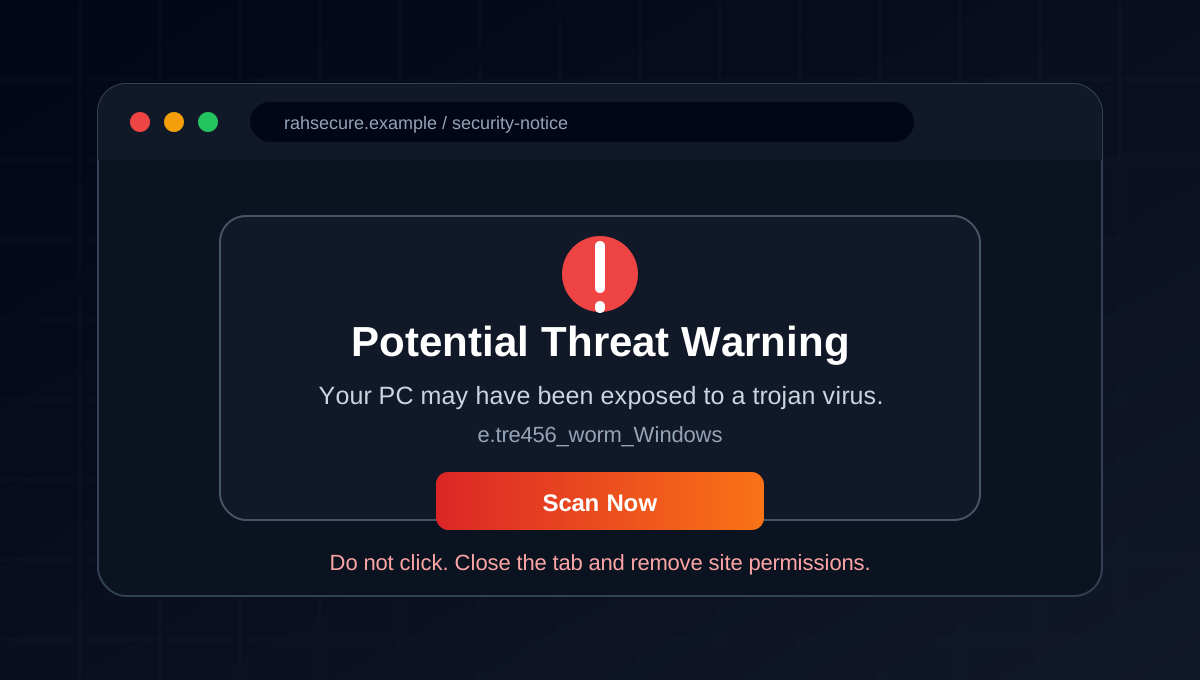
“Potential Threat Warning” is usually a fake browser security alert, not a normal Windows Defender message. The page may claim that your PC was exposed to a trojan such as e.tre456_worm_Windows and push a Scan Now button. Some versions appear from suspicious domains, ads, push notifications, or unwanted extensions. The goal is to scare you into clicking, installing unwanted software, or contacting fake support.
Is “Potential Threat Warning” a real virus?
The warning itself is usually scareware: a deceptive web page or notification that pretends to be a security product. It may not mean that a file-based virus is already installed. However, it can be a sign that your browser allowed notifications from a rogue site, an extension is injecting ads, or unwanted software is redirecting pages.
Microsoft and the FTC both warn that fake security pop-ups are a common tech-support scam tactic. A legitimate Windows security alert will not ask you to call a random phone number, pay for support through a pop-up, or install a tool from an unknown web page.
Do not click “Scan Now,” do not call any phone number, and do not allow remote access. Close the tab or browser, then clean browser permissions and scan the system with trusted tools.
Why it keeps appearing
| Where it appears | Likely cause | What to check |
|---|---|---|
| Lower-right desktop notification | A website has permission to send browser notifications. | Chrome or Edge notification permissions. |
| Full browser tab or pop-up | Redirect from an ad, compromised page, or scam domain. | Close the tab, clear site data, and avoid the source page. |
| Returns when browser opens | Startup page, extension, or browser hijacker. | Extensions, startup pages, search engine, and policies. |
| Appears after installing free software | Bundled adware or a potentially unwanted program. | Installed apps, startup entries, and full malware scan. |
Step 1: Close the fake warning safely
- Do not press the button inside the warning.
- If the tab will not close, press Ctrl + Shift + Esc and end the browser task.
- Reopen the browser without restoring the previous session.
- If the same page opens again, disconnect from the internet and continue with the browser cleanup below.
Step 2: Remove browser notification permissions
Many “Potential Threat Warning” pop-ups survive because the user accidentally clicked Allow on a notification prompt. Removing that permission stops the fake alerts from appearing as desktop notifications.
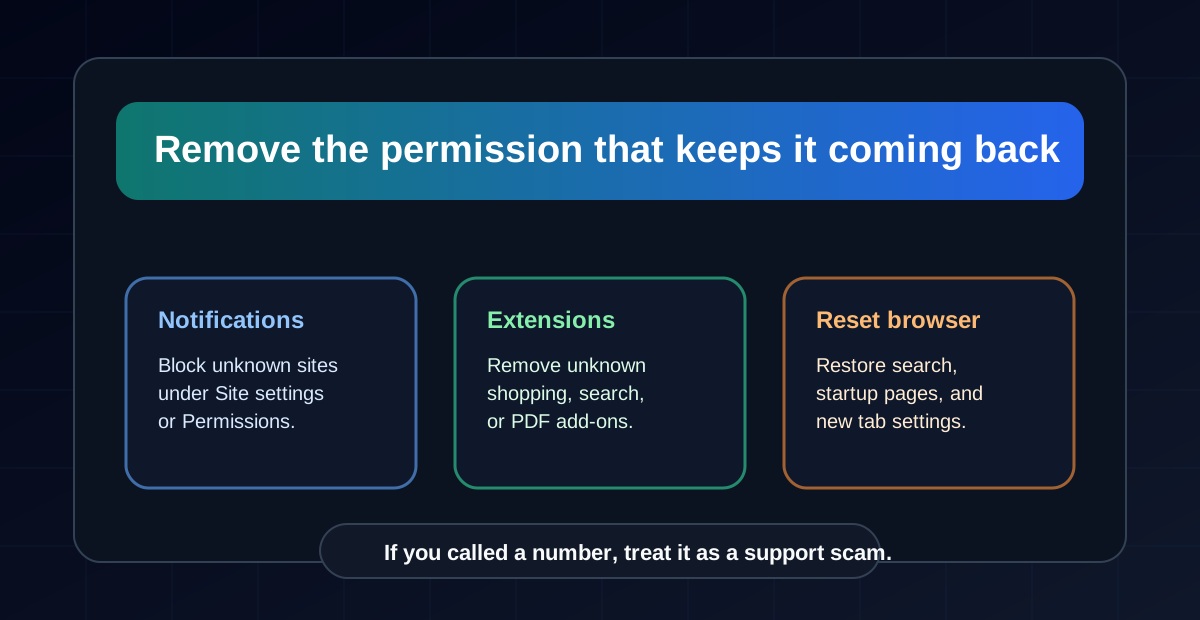
- Chrome: Settings > Privacy and security > Site settings > Notifications. Remove or block unknown sites.
- Edge: Settings > Cookies and site permissions > Notifications. Remove suspicious allowed sites.
- Firefox: Settings > Privacy & Security > Permissions > Notifications > Settings. Remove unknown sites.
Step 3: Remove suspicious extensions and settings
- Remove unknown extensions, especially search, shopping, coupon, PDF, video downloader, VPN, or “security” add-ons you did not choose.
- Reset the default search engine to Google, Bing, DuckDuckGo, or another trusted provider.
- Remove unknown startup pages and new-tab URLs.
- Clear cookies and site data for the suspicious domain that showed the warning.
- If the browser says Managed by your organization on a personal PC, check for unwanted browser policies.
Step 4: Uninstall unwanted programs
If the warning started after installing free software, a “browser helper,” a video tool, or a fake cleaner, check installed apps. Remove recently installed programs you do not recognize. Pay attention to apps with vague names, no publisher, or install dates that match when the pop-ups began.
- Open Settings > Apps > Installed apps.
- Sort by install date.
- Uninstall suspicious apps.
- Restart Windows.
- Check Task Manager startup apps and disable unknown entries.
Step 5: Scan with Windows Security
After browser cleanup, run a real system scan. This verifies whether the issue was only a scam page or whether adware, a browser hijacker, or another unwanted program is present.
- Open Windows Security.
- Go to Virus & threat protection.
- Open Protection updates and click Check for updates.
- Run a Full scan.
- If Windows Security finds a real threat, choose Remove or Quarantine.
Second-opinion scan with Trojan Killer
If the fake warning keeps returning, or if you found suspicious extensions or programs, use a second-opinion scanner to check for leftovers. One option is Trojan Killer. Update its database first, run a full scan, and review detections before quarantining anything.
If you called the number or allowed remote access
Treat the incident as a tech-support scam. Disconnect from the internet, uninstall remote-access tools such as AnyDesk, TeamViewer, UltraViewer, or unknown “support” apps, and change important passwords from a clean device. Contact your bank if you shared payment details or allowed a stranger to access financial accounts.
- Remove remote-control tools you did not use before.
- Change email, banking, Microsoft/Google, password manager, and work passwords.
- Enable two-factor authentication.
- Review bank and card activity.
- Report the scam to Microsoft or the FTC if money or personal data was involved.
Related removal guides
- Trojan:HTML/Phish.AO!atmn removal guide
- HackTool:Win32/GameHack removal guide
- Trojan:Win32/Wacatac removal guide
- Trojan:Win32/Cerdigent removal guide
- Trojan:Win32/Cerdigent.A!dha guide
