

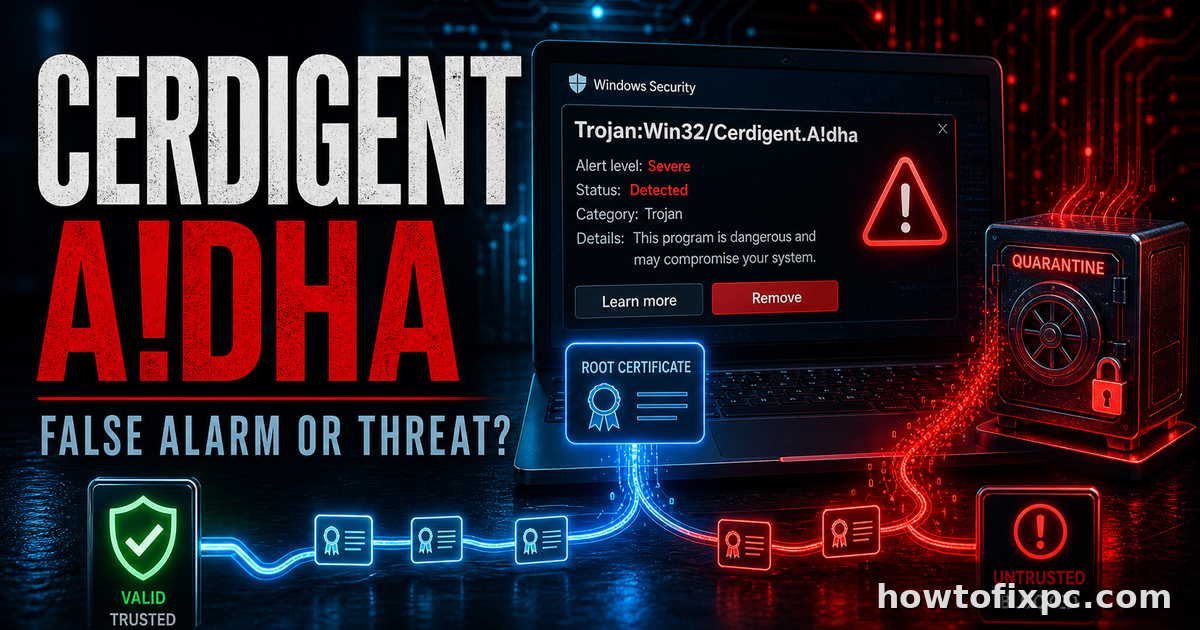
Trojan:Win32/Cerdigent.A!dha is a Microsoft Defender detection that appeared in security intelligence updates at the end of April 2026. Treat the warning seriously, but do not rush into resetting Windows. In early May 2026, many users and administrators saw this exact detection tied to legitimate DigiCert root certificates, and Microsoft later updated Defender logic to suppress those false-positive alerts. The right response is to update Defender first, check what object was detected, and then scan the system if the alert points to an actual file or keeps coming back.
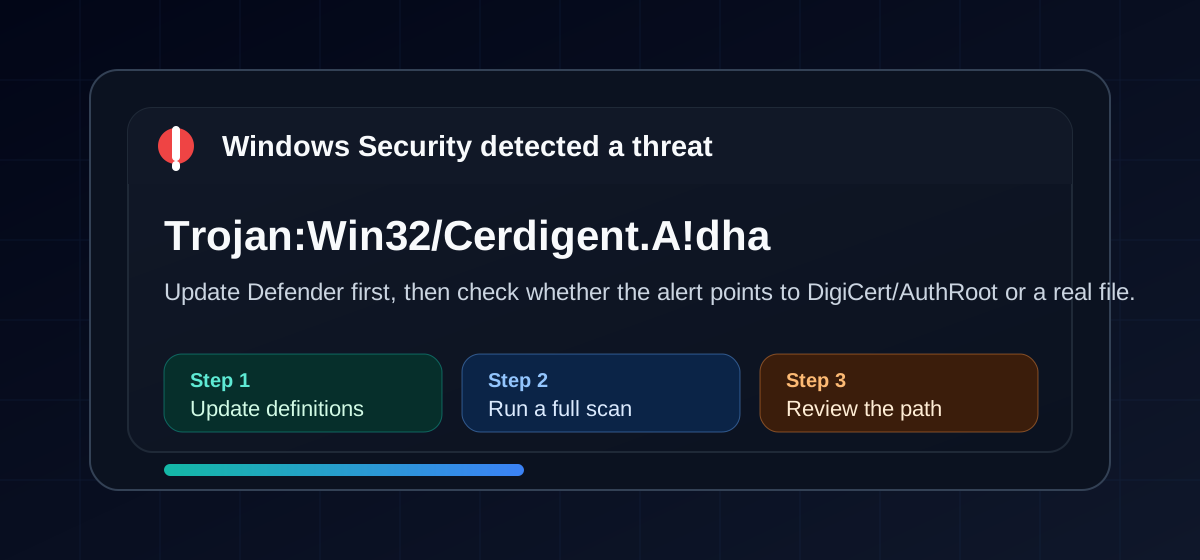
Short answer: is Cerdigent.A!dha real malware?
Microsoft’s malware encyclopedia lists Trojan:Win32/Cerdigent.A!dha as a Defender Antivirus detection and says Defender can detect and remove it. Microsoft also notes that detailed technical behavior is not currently available for this threat name. That means the detection name alone is not enough to know whether your specific alert is an active infection, a quarantined file, or a false positive.
The important context is timing. Reports from May 2026 showed Defender flagging legitimate DigiCert root certificate entries as Trojan:Win32/Cerdigent.A!dha. BleepingComputer reported that Microsoft fixed the detection logic in Security Intelligence version 1.449.430.0 or later. If your alert appears around that time and references DigiCert, AuthRoot, or the Windows certificate store, update Defender before doing anything destructive.
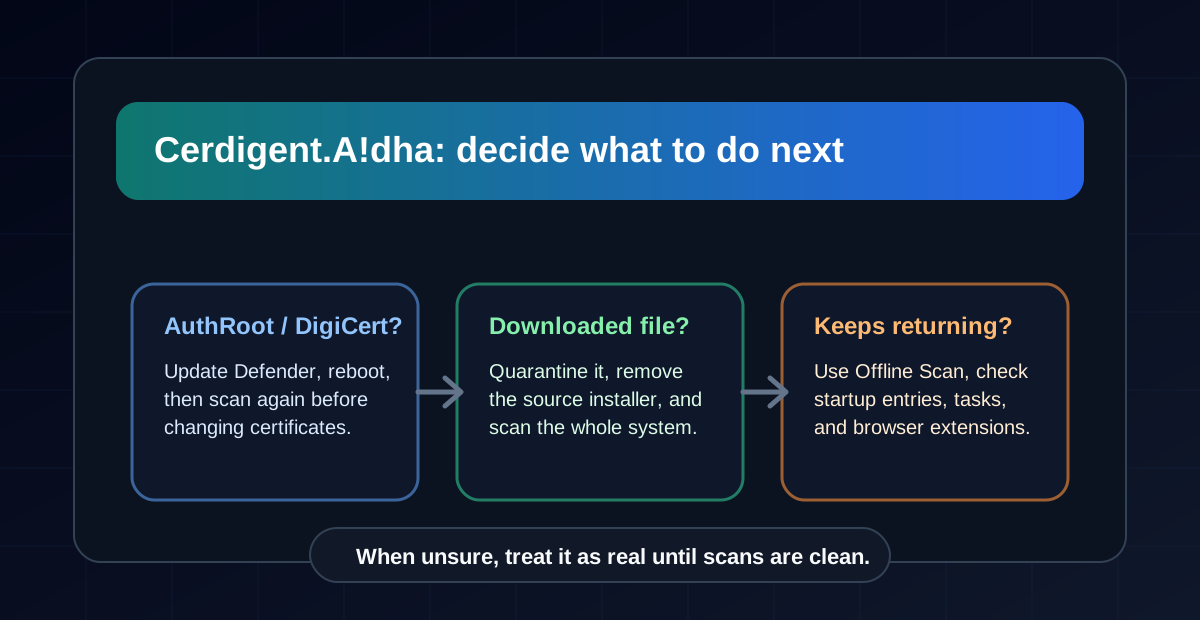
Do not delete random certificates or system files manually. If the detection path mentions AuthRoot or DigiCert, update Microsoft Defender, reboot, and scan again first. Removing trust-store items without understanding the alert can cause browser, updater, and application trust problems.
What to check in Protection History
Open Windows Security, go to Virus & threat protection, then open Protection history. Expand the Cerdigent item and look for the affected item path, container, process, and action taken. The path is the clue that tells you whether you are handling a known false-positive pattern or a real suspicious file.
| What the alert points to | Likely meaning | Best next step |
|---|---|---|
| DigiCert, AuthRoot, or certificate store | Possible Defender false positive reported in May 2026. | Update Defender definitions, reboot, and run a full scan before restoring or deleting anything. |
| Downloads, Temp, AppData, browser cache, or an archive | A file on disk may be suspicious or unwanted. | Quarantine it, delete the original download source, and scan the system. |
| A crack, patcher, keygen, fake update, or bundled installer | High-risk source that often carries Trojans. | Remove it and treat the PC as potentially compromised. |
| The same detection returns after restart | There may be persistence or a repeated false positive. | Update Defender, run Offline Scan, then check startup entries and scheduled tasks. |
First step: update Microsoft Defender
Before you remove certificates, reset the PC, or restore quarantine items, force a Defender update. This is especially important for Trojan:Win32/Cerdigent.A!dha because the false-positive reports were tied to Defender security intelligence rather than to something most users installed themselves.
- Open Windows Security.
- Go to Virus & threat protection.
- Open Protection updates.
- Click Check for updates.
- Restart Windows and run a full scan.
You can also open PowerShell as administrator and run:
Update-MpSignature
Get-MpComputerStatus | Select-Object AMProductVersion, AMServiceVersion, AntispywareSignatureVersion, AntivirusSignatureVersion
If the alert mentions DigiCert or AuthRoot
Some Cerdigent.A!dha alerts were reported against root certificate entries under the Windows AuthRoot certificate store. BleepingComputer reported two DigiCert root certificate hashes being flagged and noted that Microsoft updated Defender to suppress and clean up those false-positive alerts. In that situation, the safest approach is to let Defender update itself instead of trying to rebuild the certificate store by hand.
HKLMSOFTWAREMicrosoftSystemCertificatesAuthRootCertificates- If Defender is on Security Intelligence 1.449.430.0 or later, scan again and confirm whether the alert disappears.
- If the alert remains, check whether the detection path is still a certificate entry or a separate file.
- If this is a work computer, check Microsoft 365 service health or your security administrator’s Defender portal guidance.
- If you already quarantined certificates and Windows later restores them, do not repeatedly remove them unless Microsoft or your administrator confirms they are malicious.
If the alert points to a real file
If Protection History points to an executable, script, archive, installer, browser download, crack, fake update, or file inside Temp/AppData, treat it as a real threat. Defender’s name may be generic, but the file still needs to be removed and the source needs to be checked.
- Choose Remove or Quarantine in Windows Security.
- Delete the original installer or archive that delivered the file.
- Empty the browser download source if it keeps redownloading.
- Update Windows and your browser.
- Run a Full scan, then use Microsoft Defender Offline scan if the detection returns after restart.
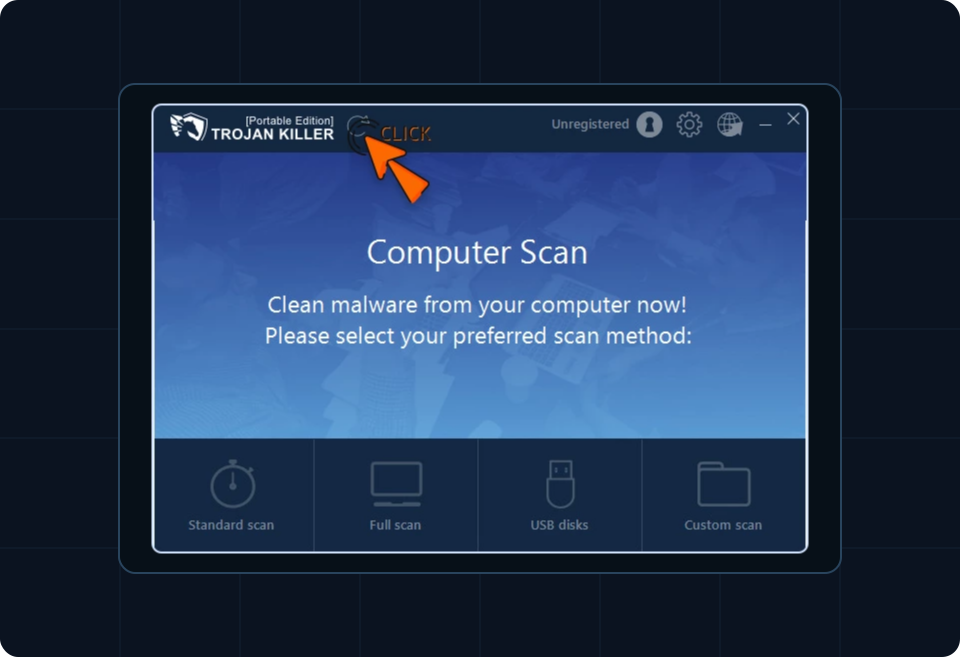
Second-opinion scan with Trojan Killer
After Defender has been updated and the detected item has been removed or ruled out as a false positive, a second-opinion scan can help verify that no startup component, browser add-on, or leftover suspicious file remains. One option is Trojan Killer. Update its database first, then run a full scan and review detections before quarantining anything.
Check common persistence locations
If Cerdigent.A!dha comes back after removal and the detection is not the DigiCert/AuthRoot false-positive pattern, look for persistence. Trojans often return because a startup entry, scheduled task, service, browser extension, or updater script recreates the detected file.
- Open Task Manager > Startup apps and disable unknown entries.
- Open Task Scheduler and check recently created tasks.
- Review browser extensions in Chrome, Edge, and Firefox.
- Check installed apps for unknown VPNs, download tools, coupon add-ons, fake system optimizers, or remote-access tools.
- Look at the file path from Protection History and search nearby folders for recently modified files.
Do not sign in to sensitive accounts until the system is clean. If the alert involved a real file and you recently ran a suspicious installer, change important passwords from a clean phone or another trusted computer.
When to restore, ignore, or escalate
| Situation | What to do |
|---|---|
| Alert disappears after Defender update and full scan | No extra action is usually needed. Keep Windows and Defender updated. |
| Alert was a DigiCert/AuthRoot item and Microsoft updates restored it | Do not repeatedly quarantine it. Monitor Protection History for new detections. |
| Alert points to a downloaded executable or script | Remove it, scan, and avoid the source that delivered it. |
| Alert returns after Offline Scan | Back up important documents only, then get hands-on help or consider a clean reinstall. |
| This is a business device | Contact the administrator and check Defender for Endpoint alerts before making exclusions. |
Related removal guides
- “Potential Threat Warning” pop-up removal guide
- Trojan:Win32/Cerdigent removal guide
- Trojan:Win32/Wacatac removal guide
