

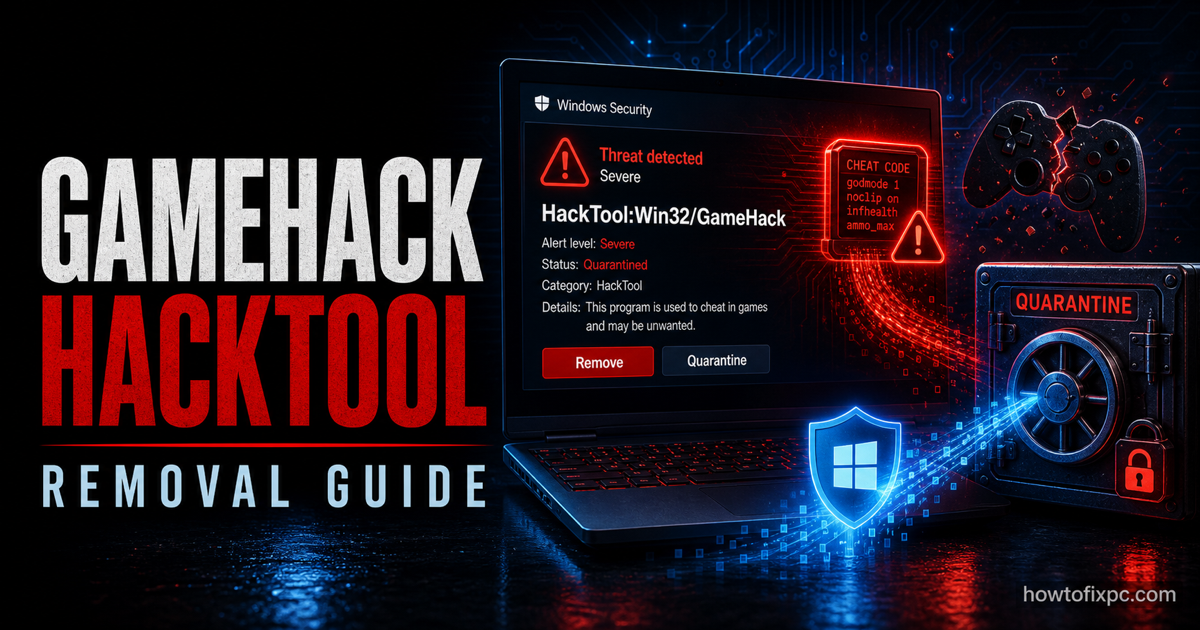
HackTool:Win32/GameHack is a Microsoft Defender detection for a tool that is usually connected with game cheats, game cracks, trainers, patchers, or files that modify how a game runs. Some users install these tools on purpose, but that does not make the alert harmless. A game hack can arrive bundled with adware, credential stealers, downloaders, or persistence components that stay on the PC after the game tool is removed.
Do not whitelist it just because it mentions a game. First check the affected item path in Protection History. A trainer you knowingly downloaded is still risky; a GameHack detection in Temp, AppData, Startup, browser folders, or a random DLL should be treated as suspicious.
What HackTool:Win32/GameHack means
Microsoft classifies GameHack as a hack tool, not as a normal game file. In practice, this name is often used when Defender sees software that tries to bypass game rules, modify memory, patch files, inject code, unlock paid content, or automate gameplay. The same distribution channels are also used to push Trojans: fake cheat packs, password-protected archives, “disable antivirus first” installers, cracked launchers, and YouTube/Discord download links.
The safest assumption is simple: if the file came from a cheat, crack, keygen, trainer, or unofficial patch, remove it and scan the system. If you never installed a game tool, treat the alert as a possible infection or bundled payload.
Check the affected item path
Open Windows Security, go to Virus & threat protection, then open Protection history. Expand the HackTool:Win32/GameHack alert and note the affected file, status, and action taken. The path tells you how aggressive the cleanup should be.
| Defender shows | What it usually means | What to do |
|---|---|---|
| Downloads, Desktop, game folder, archive, trainer, crack, or patcher | A cheat or game-modification tool was downloaded or extracted. | Quarantine it, delete the original archive/installer, and scan the whole PC. |
| Temp, AppData, ProgramData, Startup, scheduled task path, or random EXE/DLL | The tool may have dropped a payload or persistence component. | Run Defender Offline Scan and inspect startup locations. |
| Browser profile, extension folder, or suspicious installer cache | A bundled downloader/adware component may be involved. | Remove unknown extensions, reset notifications, and scan again. |
| The alert returns after reboot | Another process is recreating the file. | Check Task Scheduler, Startup apps, services, and recently installed programs. |
Safe removal steps
- Disconnect the PC from the internet if the tool ran or if Defender keeps detecting new files.
- Open Windows Security > Virus & threat protection > Protection updates and install the latest definitions.
- In Protection history, choose Remove or Quarantine for the GameHack detection.
- Delete the original cheat, crack, trainer, archive, password text file, and installer folder.
- Run a Full scan.
- If the alert returns, run Microsoft Defender Offline scan.
- Restart and check Protection History again.
You can also update Defender and start an offline scan from an elevated PowerShell window:
Update-MpSignature
Start-MpWDOScan
Check persistence after removal
Game hack bundles often try to survive a reboot or relaunch a downloader. After Defender removes the detected item, check the places that commonly start unwanted files automatically.
- Open Task Manager > Startup apps and disable unknown entries.
- Open Task Scheduler and review tasks created around the time the cheat was installed.
- Check Settings > Apps for recently installed launchers, “boosters,” fake optimizers, or unknown game utilities.
- Review browser extensions in Edge, Chrome, and Firefox.
- Look in Downloads, Temp, AppData, ProgramData, and Startup folders for recently modified suspicious files.
Second-opinion scan with Trojan Killer
After Microsoft Defender has removed HackTool:Win32/GameHack, a second-opinion scan can help find leftover files, malicious scheduled tasks, browser extensions, and persistence entries. One option is Trojan Killer. Update its database first, run a full scan, and review detections before quarantining them.
Should you restore it?
Restoring a GameHack detection is rarely worth the risk. Even if the tool only modifies a game, it can still violate game terms, trigger account bans, weaken system security, or hide a real payload. If the file came from a cheat pack, cracked launcher, or password-protected archive, leave it quarantined and delete the source.
If you believe Defender detected a legitimate game mod, verify it with the official mod community, scan the exact file with more than one reputable scanner, and avoid adding broad exclusions for Downloads, AppData, or an entire game folder. Broad exclusions can give future malware a blind spot.
Protect accounts after a game hack alert
If you ran the tool before Defender blocked it, assume browser sessions and saved passwords may be at risk. From a clean device, change passwords for email, Steam/Epic/Battle.net accounts, Discord, Microsoft/Google accounts, password managers, banking, and crypto wallets. Enable two-factor authentication and revoke unknown sessions where possible.
When to reinstall Windows
Consider a clean reinstall if HackTool:Win32/GameHack keeps returning after Defender Offline Scan, security tools are disabled, unknown admin accounts appear, browser sessions are hijacked, or the machine was used for payments, work, or sensitive accounts. Back up documents and photos only. Do not back up cracks, trainers, scripts, password-protected archives, or suspicious installers.
Related removal guides
- Trojan:Win32/Wacatac removal guide
- Trojan:Win32/JScealTaskExec removal guide
- Trojan:Win32/Cerdigent removal guide
- “Potential Threat Warning” pop-up removal guide
