

A slow computer is easier to fix when you stop guessing and measure what is actually busy. This guide shows where to look, what numbers matter, and what to do next.
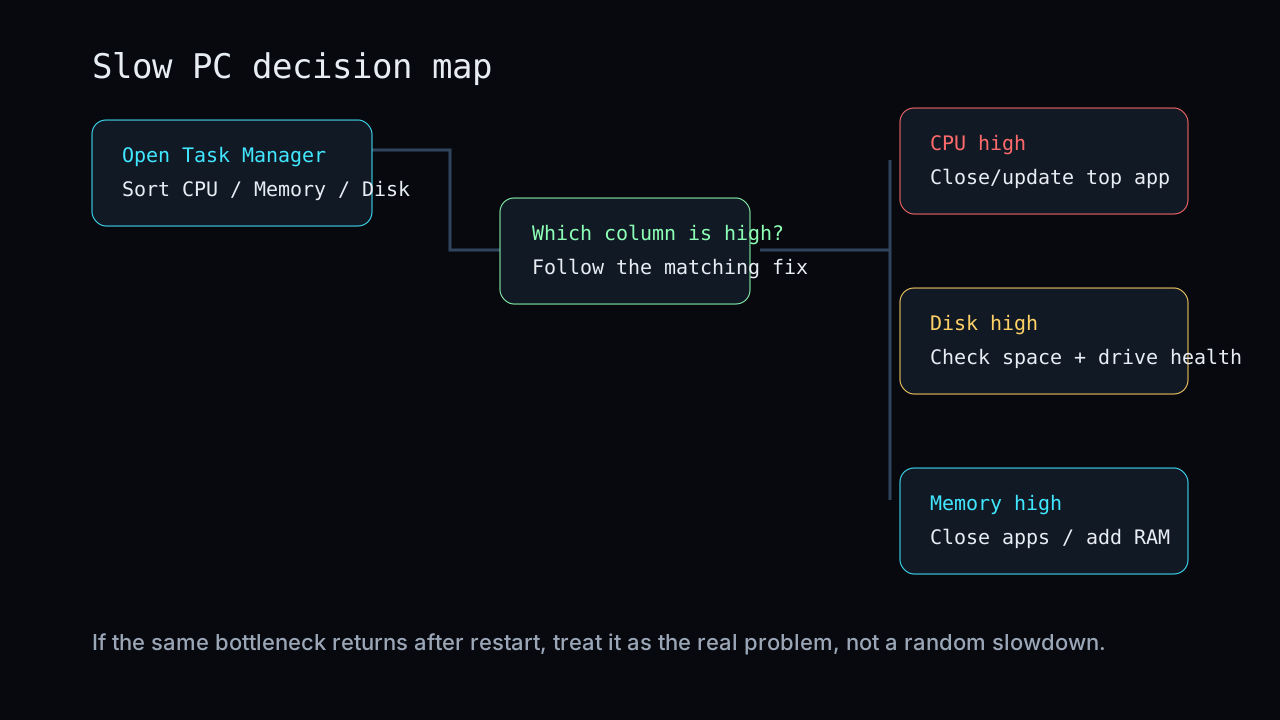
Do the steps in order. Restart first, then check Task Manager, startup apps, free space, updates, drivers, heat, malware, and finally hardware. Change one thing at a time so you know what helped.
1. Restart, then test again
Use Start > Power > Restart. Do not only close the lid or put the PC to sleep. After login, wait two minutes, then open your usual apps and see if the slowdown returns.
- If the PC is fast after restart and becomes slow after several days, the problem is probably a background app, browser tabs, memory pressure, or a program that leaks resources.
- If it is slow immediately after restart, continue with Task Manager and storage checks.
- If restart says updates are pending, let Windows finish them before changing drivers or settings.
2. Find the bottleneck in Task Manager
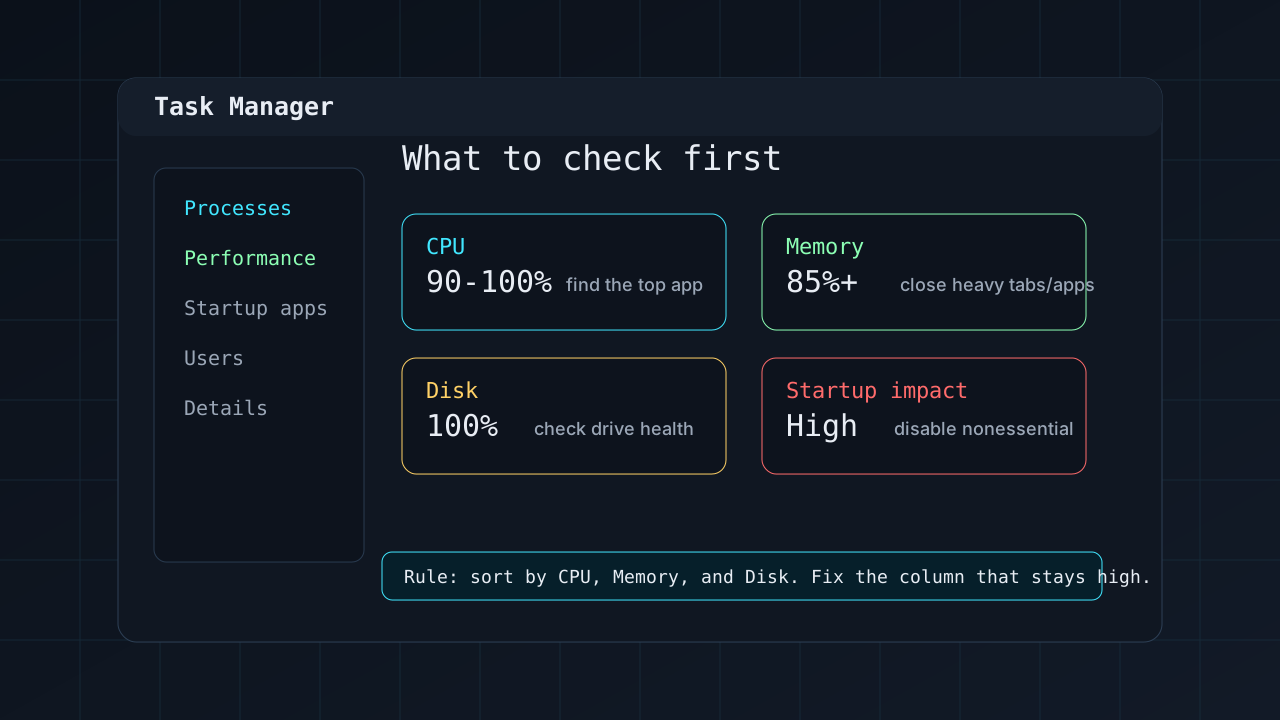
Press Ctrl + Shift + Esc to open Task Manager. In Processes, click the column headers CPU, Memory, and Disk. Watch which column stays high while the computer feels slow.
| What you see | Likely cause | What to do |
|---|---|---|
| CPU stays at 90-100% | One app, browser tab, update, or antivirus scan is using the processor. | Sort by CPU. Close or update the top app. If it is Windows Update or antivirus, wait and recheck. |
| Memory stays above 85% | Too many apps/tabs or not enough RAM. | Close browsers, launchers, chat apps, and large files. If normal work still uses 85%+, consider more RAM. |
| Disk stays at 100% | Low free space, an old hard drive, indexing, updates, or drive health problems. | Check free space first. If the PC has an HDD, an SSD upgrade is usually the biggest improvement. |
| GPU high while idle | Browser video, game launcher, recording app, or driver issue. | Close media apps, update graphics drivers from the manufacturer, then restart. |
3. Disable startup apps you do not need
Open Task Manager > Startup apps. Disable apps with High startup impact if they are not needed immediately after login. Good candidates are game launchers, chat apps, cloud tools you rarely use, printer utilities, and update helpers.
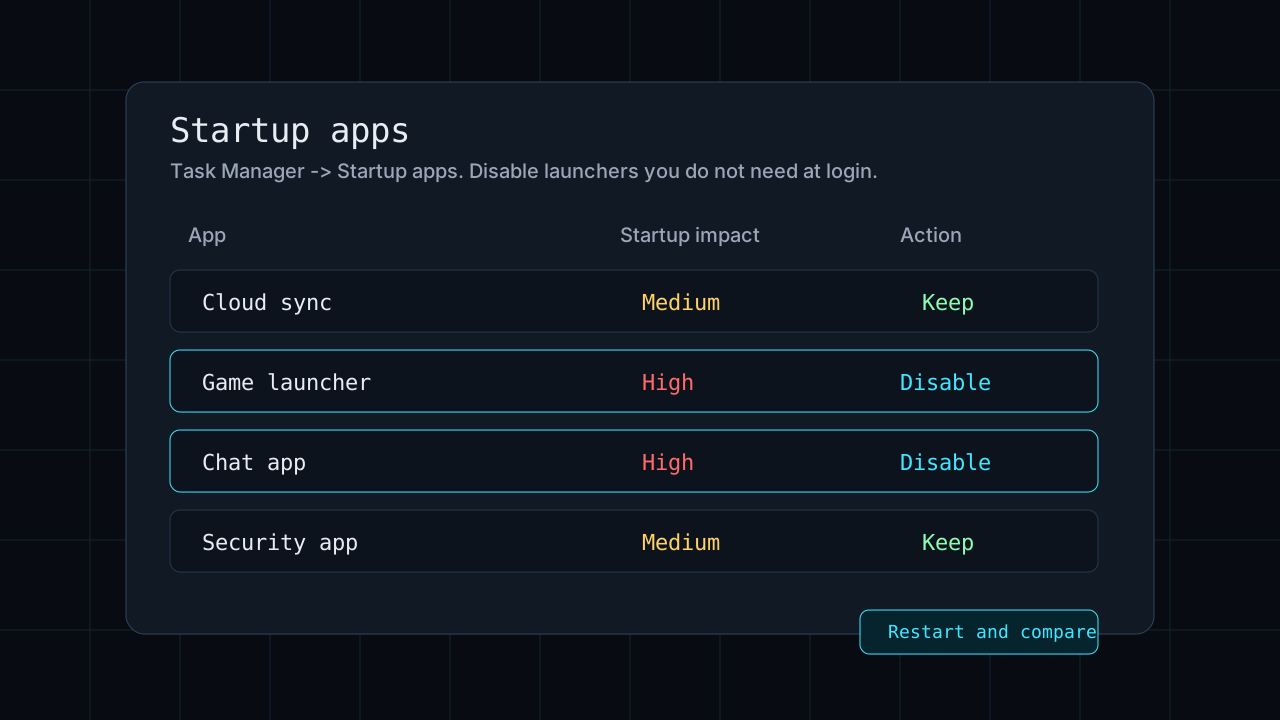
After disabling startup apps, restart again. If boot time and first five minutes feel better, you found part of the problem. If nothing changes, keep the apps disabled only if you do not miss them.
4. Free up space on the system drive
Open Settings > System > Storage. Check the C: drive. Try to keep at least 15-20% free. A nearly full system drive can slow updates, search indexing, temporary files, and virtual memory.
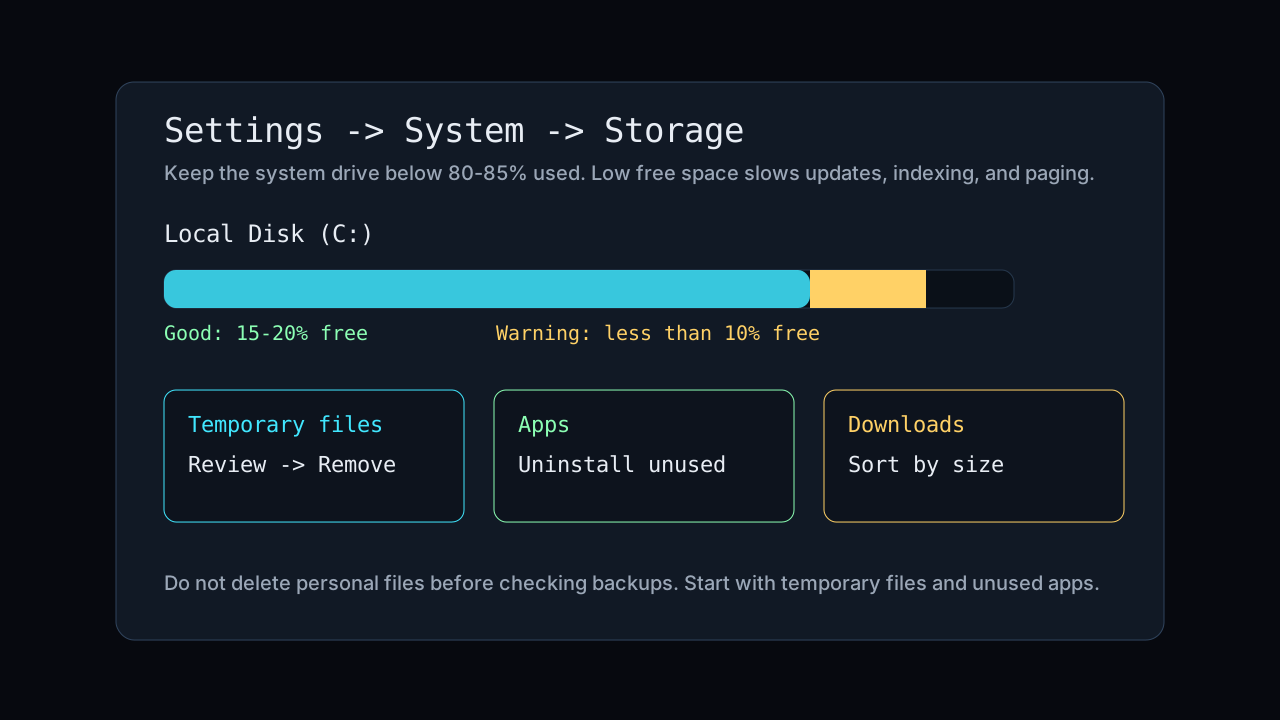
- Run Temporary files cleanup from Storage settings.
- Sort Downloads by size and move old installers, videos, and archives to external storage.
- Uninstall apps you no longer use from Settings > Apps > Installed apps.
- Empty the Recycle Bin after you confirm nothing important is inside.
If the drive is still full, use a disk usage tool such as WinDirStat or TreeSize Free to see which folders are large. Do not delete random folders from Windows, Program Files, or AppData unless you know exactly what they are.
5. Update Windows and official drivers
Install Windows updates from Settings > Windows Update. Then check Advanced options > Optional updates for driver updates. For laptops and branded desktops, also visit the manufacturer support page and search your exact model.
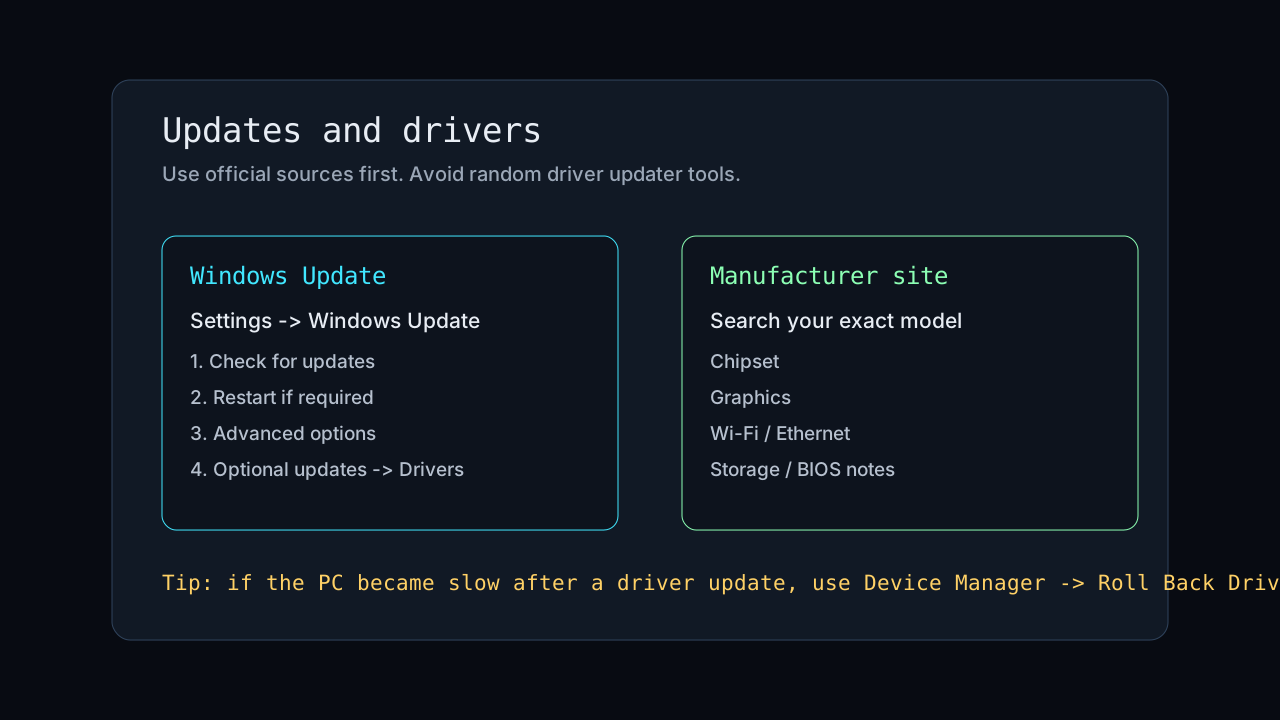
- Prioritize chipset, graphics, Wi-Fi/Ethernet, storage, and BIOS notes from the manufacturer.
- If the slowdown started after a driver update, open Device Manager, right-click the device, choose Properties > Driver, and look for Roll Back Driver.
- Do not install drivers from random download sites. They often bundle unwanted software or the wrong driver.
6. Check for overheating
Heat causes the processor to slow down to protect itself. Suspect overheating if the computer is fast for a few minutes and then becomes slow, the fan is loud, or the laptop bottom feels very hot.
- Put laptops on a hard surface, not a blanket or pillow.
- Check that vents are not blocked.
- Shut down the PC and clean dust from vents with short bursts of compressed air.
- If temperatures are still high, old thermal paste or a failing fan may need service.
For a quick check, use a temperature monitor such as HWiNFO or the tool from your PC maker. During light browsing, many laptops sit roughly in the 40-70°C range. Sustained 90°C+ under normal light work is a warning sign.
7. Scan for malware and unwanted software
Open Windows Security > Virus & threat protection and run a full scan. Also look in installed apps and browser extensions for programs you do not recognize.
- Remove browser extensions you do not use.
- Uninstall toolbars, “PC cleaners,” coupon extensions, and fake driver utilities.
- If pop-ups claim your PC is infected and ask you to install something, close the page. Do not click the download.
8. Decide if hardware is the real fix
If the computer is clean, updated, cool, and still slow, hardware may be the limit. The two upgrades that usually matter are an SSD and more memory.
| Symptom | Best upgrade | Why |
|---|---|---|
| Disk is often 100%, PC has an HDD | Replace HDD with SSD | Boot, app loading, updates, and file access improve dramatically. |
| Memory is often 85-95% | Add RAM | Windows stops pushing active apps into slow virtual memory. |
| CPU is old and always high | Newer computer may be better | CPU upgrades are often limited on laptops and older desktops. |
| Slow only in games | GPU or graphics settings | Lower resolution/details first, then update graphics drivers. |
Frequently asked questions
Open Task Manager and sort by CPU, Memory, and Disk. The resource that stays high tells you where to start: close heavy apps, reduce startup programs, free storage, or check for a drive problem.
A hard drive can hit 100% during Windows updates, indexing, antivirus scans, or when there is not enough free space. If the PC still uses an HDD, replacing it with an SSD is usually the biggest speed improvement.
Disable apps you do not need immediately after login, such as game launchers, chat apps, cloud tools you rarely use, printer helpers, and update helpers. Keep security software, touchpad, audio, and hardware utilities enabled unless you know what they do.
If Disk is often 100% and the computer has an HDD, upgrade to an SSD first. If Memory stays near 85-95% while you work, add RAM. Check Task Manager before buying parts.
Quick checklist
- Restart the PC and wait two minutes after login.
- Open Task Manager and find whether CPU, Memory, or Disk is the bottleneck.
- Disable unnecessary high-impact startup apps.
- Keep 15-20% of the C: drive free.
- Install Windows updates and official drivers.
- Check heat if performance drops after a few minutes.
- Scan for malware and remove unwanted apps/extensions.
- If the PC has an old hard drive, plan an SSD upgrade.
The important part is not doing every possible tweak. The important part is finding the bottleneck, making one change, restarting, and checking whether the same number improved.
